Development

How to Connect a Domain to Webflow: DNS Records Explained

Webflow domain connection DNS settings showing A record, CNAME and TXT record configuration
TABLE OF CONTENT
November 2, 2026

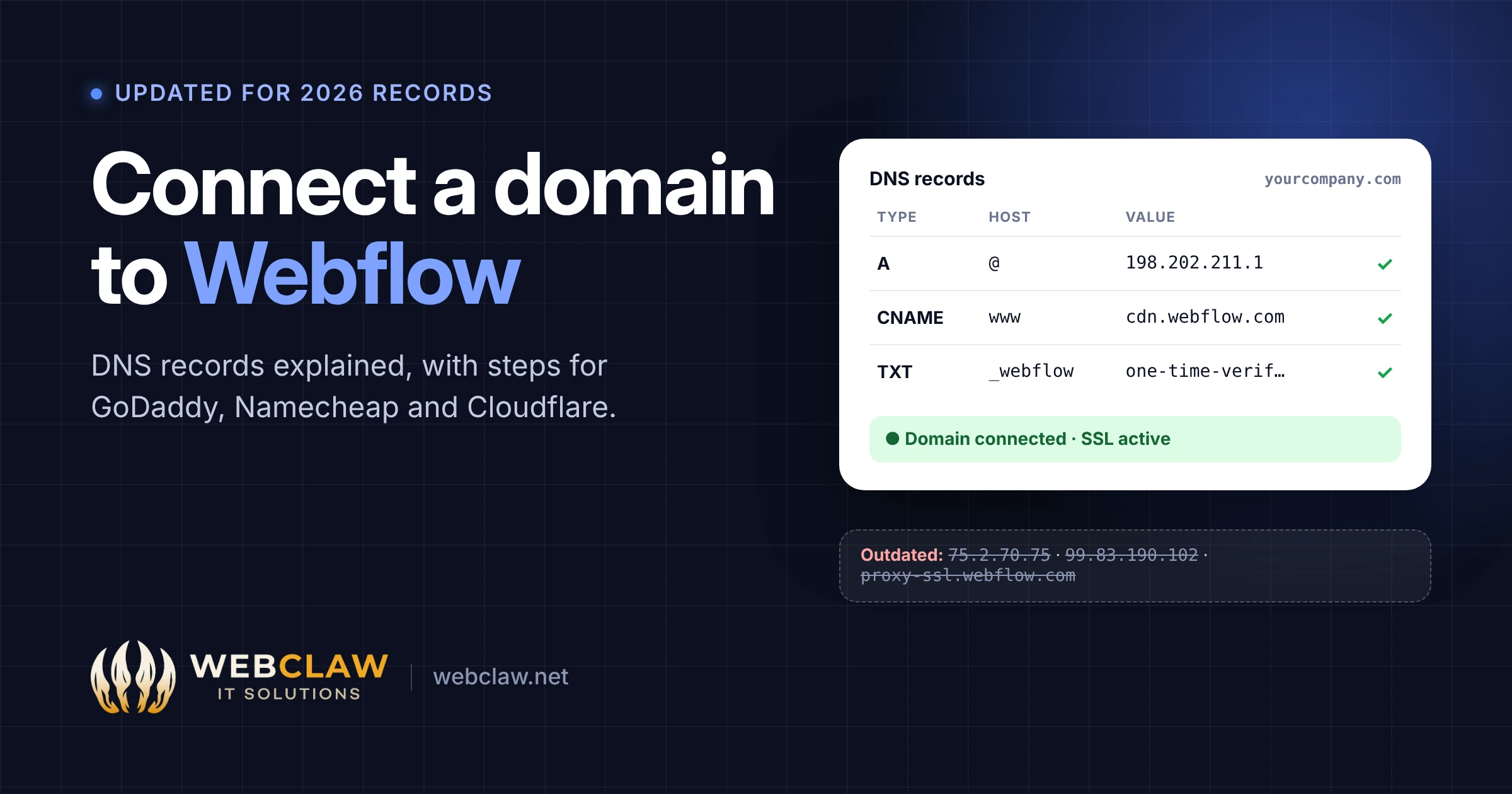
To connect a domain to Webflow, add it in Site settings > Publishing > Production, then create three DNS records at your domain provider: an A record pointing your root domain to 198.202.211.1, a CNAME record pointing www to cdn.webflow.com, and a TXT record that verifies you own the domain. Most domains connect within a few hours.

One warning before you start: Webflow changed these records in 2025–26, and many older guides still show the old values. Sites still using them can't publish, and Webflow began switching off its old hosting on June 1, 2026.
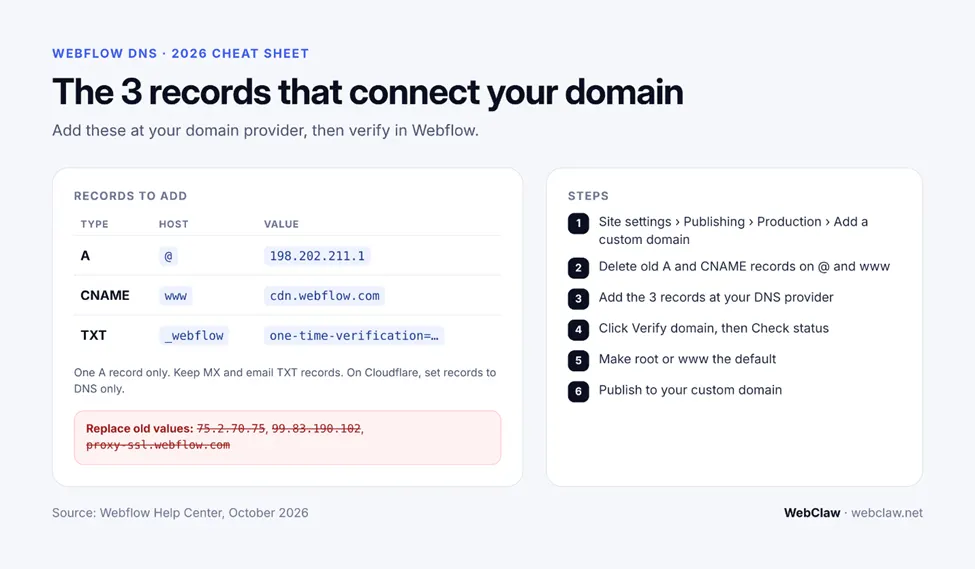
Quick Answer: Webflow's DNS Records (2026)

Type Host / Name Value
A @ 198.202.211.1
CNAME www cdn.webflow.com
TXT _webflow one-time-verification=… (copy it from Webflow)

You need a paid Webflow Site plan, and you should delete any other A or CNAME records on @ and www.

Old vs New Webflow DNS Records

Record Old (don't use) New (use this)
A (@) 75.2.70.75 and 99.83.190.102 198.202.211.1, one record only
CNAME (www) proxy-ssl.webflow.com cdn.webflow.com

If your domain still uses the old values, update them now. Your site can't publish to its custom domain until you do.

Before You Start

  • A paid Webflow Site plan. The free Starter plan only publishes to a webflow.io address. Basic ($15/mo billed yearly) is the cheapest plan with a custom domain; see our Webflow pricing guide.
  • A domain you own, bought from any registrar, such as GoDaddy, Namecheap, Cloudflare or Squarespace Domains.
  • Login access to your domain's DNS settings. This is wherever your nameservers point, which isn't always where you bought the domain.
  • A note of your existing records. Take a screenshot of the DNS page before you change anything, especially email (MX) records, so you can undo mistakes.

If you're moving a live site from another platform, plan the switch for a quiet time and lower your records' TTL a day ahead. Our migration service covers this for you.

The DNS Records Webflow Needs, Explained

DNS is your domain's address book. Each record tells the internet where to send a particular kind of request. Webflow needs three.

A Record: Your Root Domain

An A record points a domain name to an IP address. The host @ means the root domain (yourcompany.com with no www). For Webflow, set it to 198.202.211.1.

Webflow now uses one A record. If you see two older Webflow IPs (75.2.70.75 and 99.83.190.102), replace one and delete the other.

CNAME Record: The www Subdomain

A CNAME record points one name to another name instead of an IP. The host www covers www.yourcompany.com. For Webflow, point it to cdn.webflow.com. Some providers want a trailing dot (cdn.webflow.com.); add one if yours asks.

TXT Record: Proving You Own the Domain

A TXT record holds text that services read to verify ownership. Webflow shows you a record with the host _webflow and a value starting with one-time-verification=. Copy it exactly from your Webflow settings, because it's unique to your site.

Records You Should Keep

Don't touch records that do other jobs. The most important are MX records and their related TXT records (SPF, DKIM, DMARC), which run your email. Deleting them breaks email, not your website.

Step by Step: Connect Your Domain to Webflow

Option 1: Quick Connect

For supported providers, including Cloudflare, Webflow can set the records for you. In Site settings > Publishing > Production, click Add a custom domain and follow the quick-connect prompts to sign in to your provider. If your provider isn't supported, use the manual steps below.

Option 2: Manual Setup

  1. Add the domain in Webflow. Go to Site settings > Publishing > Production, click Add a custom domain, choose to add it manually, enter yourcompany.com and click Add domain. Webflow adds the root and www together.
  2. Copy the records Webflow shows you: the A, CNAME and TXT records.
  3. Open your DNS settings at your domain provider, in the DNS, DNS Management or Advanced DNS section.
  4. Delete conflicting records. Remove any existing A records on @ and CNAME records on www, including parking-page records your registrar added by default. Keep MX and email TXT records.
  5. Add the three records:
    • A, host @, value 198.202.211.1
    • CNAME, host www, value cdn.webflow.com
    • TXT, host _webflow, value from Webflow
  6. Verify in Webflow. Click Verify domain, then Check status once the records have spread.
  7. Choose a default domain. Click Make default next to either www.yourcompany.com or yourcompany.com. The other version will redirect to it.
  8. Publish. Click Publish, tick your custom domains, and publish to the selected domains.

DNS changes usually work within a few hours, but can take up to 48 hours to reach everyone.

Notes for Popular Domain Providers

The records are the same everywhere. Only the screens differ.

Provider Where to Edit Watch Out For
GoDaddy Domain > DNS > DNS Records A default "Parked" A record on @. Delete or edit it to 198.202.211.1. Also check for domain forwarding, which overrides DNS.
Namecheap Domain List > Manage > Advanced DNS Default URL Redirect and parking CNAME records. Remove them before adding Webflow's.
Cloudflare DNS > Records Set every Webflow record to DNS only (grey cloud). Webflow hosting doesn't work behind Cloudflare's proxy, and SSL errors such as "525" usually mean the proxy is on. If Zone Hold is enabled, release it until SSL is issued.
Squarespace Domains (including former Google Domains) Domains > DNS settings Default Squarespace records. Remove those on @ and www.
Others Usually called DNS, Zone Editor or Advanced DNS Some use the full domain instead of @, or want a trailing dot on CNAME values.

Not sure where your DNS lives? Look up your domain's nameservers with any WHOIS tool. The company named there is where you edit the records, even if you bought the domain elsewhere.

www or Root, SSL, Redirects and Email

Should the Default Be www or the Root Domain?

Either works with the current records, and SEO treats them the same. What matters is that you pick one and set it as the default in Webflow. Webflow then redirects the other version to it, so Google doesn't see two copies of your site. Many brands use the root (yourcompany.com) because it's shorter; if your old site used www, keep www to avoid changing every URL.

SSL (the Padlock)

Webflow issues a free SSL certificate automatically once your records are correct. Check that SSL is on under Site settings > Publishing > Advanced publishing options. If your domain has CAA records, they must allow Webflow's certificate providers, or the certificate can't be issued.

Redirects from Your Old Site

Connecting the domain doesn't redirect old page URLs. If you're moving from another platform, add 301 redirects for every old URL in Site settings > Publishing > 301 redirects before you switch the DNS, then submit your new sitemap. Our Webflow sitemap guide shows how.

Email

Webflow doesn't host email. Your MX records keep pointing to Google Workspace, Microsoft 365 or whoever runs your email, and they keep working as long as you don't delete them.

Common Problems and Fixes

Problem Likely Cause Fix
"Update needed" or "Update pending" in Webflow Old Webflow records, or duplicate A/CNAME records on the same host Keep exactly one A record (198.202.211.1) and one CNAME (cdn.webflow.com), delete the rest, then click Check status
Can't publish to the custom domain The domain still points to Webflow's legacy records Update to the new records above
Site went offline in 2026 Still on legacy records after Webflow began retiring old hosting on June 1, 2026 Update the records; the site and content are unaffected and come back once DNS updates
"Too many redirects" Cloudflare proxy on, or a forwarding rule at the registrar Set Cloudflare records to DNS only; remove registrar forwarding
"525" or SSL errors Cloudflare proxy, or CAA records blocking the certificate DNS only in Cloudflare; allow Webflow's certificate providers in CAA
Domain won't verify TXT record missing, mistyped, or host entered as _webflow.yourcompany.com twice Copy the TXT value exactly; some providers add the domain automatically, so use just _webflow
Root works but www doesn't (or the reverse) One of the two records is missing Add both the A and the CNAME record
Still showing the old site DNS hasn't spread yet, or your browser cached it Wait a few hours, try another network or a private window, and check with a DNS lookup tool
Email stopped working MX records deleted Restore them from your screenshot or your email provider's setup guide

Frequently Asked Questions (FAQ)

What DNS Records Does Webflow Need?

Three: an A record on @ pointing to 198.202.211.1, a CNAME record on www pointing to cdn.webflow.com, and a TXT record on _webflow with the verification value shown in your Webflow site settings.

What Is Webflow's IP Address?

Webflow's current A record value is 198.202.211.1. The older addresses, 75.2.70.75 and 99.83.190.102, are legacy and should be replaced.

Is proxy-ssl.webflow.com Still Used?

No. Webflow replaced proxy-ssl.webflow.com with cdn.webflow.com as the CNAME target for www.

How Long Does It Take to Connect a Domain to Webflow?

Usually a few hours after you add the records, though DNS changes can take up to 48 hours to reach every network.

Can I Connect a Domain to Webflow for Free?

No. Custom domains need a paid Site plan. Basic is the cheapest, at $15 a month billed yearly.

Can I Use Cloudflare with Webflow?

Yes, as your DNS provider, but set Webflow's records to DNS only (grey cloud). Webflow hosting doesn't work behind Cloudflare's proxy without a special setup.

Will Connecting Webflow Break My Email?

No, as long as you only change the A and CNAME records on @ and www and leave your MX and email-related TXT records alone.

Want Us to Handle the Switch?

A domain switch is quick when it goes right and stressful when it doesn't, especially on a live site with email and rankings to protect. WebClaw handles DNS, redirects, SSL and launch checks as part of our Webflow maintenance and support plans and every migration.

Get a Quote → · Hire a Webflow developer →

Sources

‍

Tarun, founder and CEO of WebClaw IT Solutions
Tarun
Founder and CEO
Tarun is the founder and CEO of WebClaw IT Solutions, a Webflow design and development studio in Jaipur, India. WebClaw holds a 5.0 rating across 140+ Upwork reviews from clients worldwide.
#development
#webflow
#startup