Webflow 301 Redirects: The Complete Guide (Wildcards, Bulk Import, Migrations)
TABLE OF CONTENT
November 6, 2026
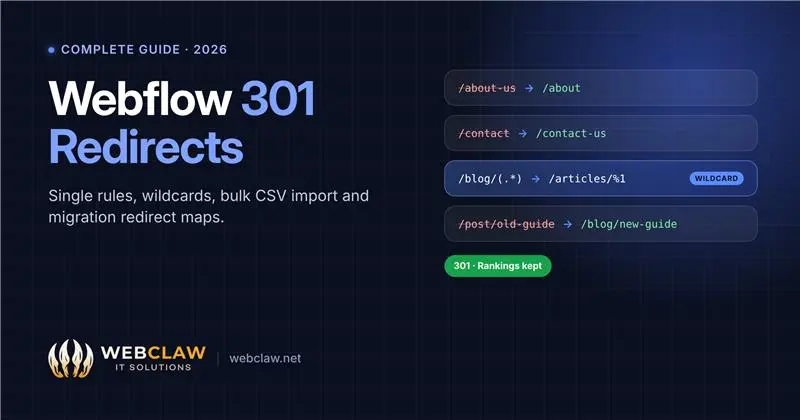
To add a 301 redirect in Webflow, go to Site settings > Publishing > 301 redirects, enter the old path (such as /old-page) and the new path or URL, click Add redirect path, and publish your site. For many URLs at once, use wildcard patterns like /blog/(.*) → /articles/%1, or import a CSV file.
Redirects are simple until they aren't. A CSV import can quietly delete every rule you already have, an old wildcard can block a newer rule, and a live page at the old URL stops a redirect from saving at all. This guide covers all of it, from a single redirect to a full migration.
Quick answer: Webflow 301 redirects
Where: Site settings > Publishing > 301 redirects. Then publish.
Single redirect: old path /old-page → new path /new-page (or a full URL on another site).
Wildcard: (.*) captures part of the URL; %1 puts it into the new path.
Bulk: import a two-column CSV, but importing replaces all existing redirects, so export and merge first.
Order matters: the oldest matching rule wins.
What a 301 redirect does, and when you need one
A 301 redirect tells browsers and search engines that a page has moved permanently. Visitors who follow an old link land on the new page, and Google transfers the old page's ranking signals to the new URL instead of treating it as a missing page.
Add a redirect whenever a URL that people or Google know about stops existing:
You changed a page or CMS slug, for example /services/seo to /webflow-seo.
You deleted or merged pages, such as two blog posts combined into one.
You moved to Webflow from WordPress, Wix, Framer or a coded site, where URL patterns differ.
You restructured folders, such as moving /blog/ to /resources/.
You fixed old links shown as 404 errors in Google Search Console.
Without redirects, every one of those old URLs returns a 404 error. That loses the visitor, wastes the backlinks pointing at the page, and can cost the rankings you built.
How to add a single 301 redirect in Webflow
Open Site settings and go to Publishing > 301 redirects.
In Old path, enter the old URL path starting with a slash, without your domain: /about-us.
In Redirect to page, enter the new path (/about) or a full URL on another domain (https://example.com/page).
Click Add redirect path.
Publish the site. Redirects only take effect on the published site.
Test it by opening the old URL in a private browser window.
Three things that stop a redirect from working:
A live page still uses the old path. Webflow won't redirect a URL that still has a page or CMS item on it. Change that item's slug, or unpublish, archive or delete it first.
You entered the full domain in Old path. Use only the path: /old-page, not https://yoursite.com/old-page.
The destination isn't published. A redirect to a draft page lands on a 404.
Redirects need a paid Site plan, which every live site on a custom domain already has.
Wildcard redirects: one rule for many URLs
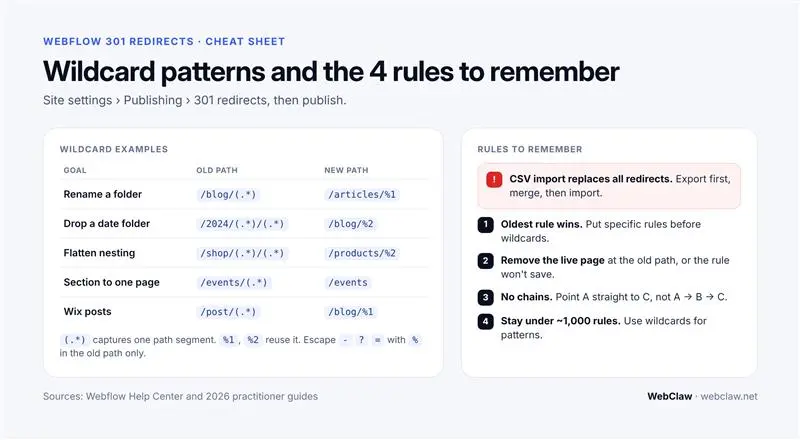
Wildcards let one rule redirect a whole group of URLs. In the old path, (.*) captures part of the URL. In the new path, %1 inserts what the first group captured, %2 the second, and so on. Treat each (.*) as one segment of the path between slashes; for nested folders, use one group per level.
What you need
Old path
New path
Example result
Rename a folder
/blog/(.*)
/articles/%1
/blog/seo-tips → /articles/seo-tips
Drop a date folder (one rule per year)
/2024/(.*)/(.*)
/blog/%2
/2024/05/seo-tips → /blog/seo-tips
Flatten a nested folder
/shop/(.*)/(.*)
/products/%2
/shop/shoes/runner → /products/runner
Send a whole section to one page
/events/(.*)
/events
/events/meetup-2023 → /events
Clean up an old site folder
/old-website/(.*)
/%1
/old-website/about → /about
Escape special characters in the old path. Characters such as ?, =, &, -, _, +, *, (, ) and % need a % in front of them, but only in the old path. For example, /?category=food becomes /%?category%=food. A wildcard on a hyphenated URL that won't fire is usually an escaping problem.
Be careful with broad patterns. A rule like /(.*) matches almost everything. Always test a new wildcard against a handful of real URLs, including ones it shouldn't catch, before you publish.
Bulk import redirects with a CSV file
For more than a handful of URLs, import them from a spreadsheet.
Warning: importing a CSV replaces every existing redirect on the site. Rules that aren't in your file are deleted. Always export your current redirects first and merge them into the new file.
Steps
In Site settings > Publishing > 301 redirects, export your current redirects as a CSV backup.
Open that file in Google Sheets or Excel and add your new rows below the existing ones. There are two columns: the old path and the new path, one redirect per row.
Remove duplicates and any rows whose old path still has a live page.
Order the rows: put specific rules above wildcard rules (see the next section).
Save as CSV and import it in the same panel.
Publish the site, then test a sample of old URLs.
Example CSV
source,target
/about-us,/about
/services/seo,/webflow-seo
/contact,/contact-us
/blog/(.\*),/articles/%1
Use whatever header labels your exported file uses, and keep the same two-column layout.
Redirects during a migration: building the redirect map
When you move a site to Webflow, redirects decide whether you keep your rankings. Most traffic drops after a migration come from missed redirects, not from Webflow itself.
1. List every old URL
Combine three sources so nothing is missed:
a crawl of the old site (Screaming Frog or a similar tool);
the old site's XML sitemap;
Google Search Console > Pages and Performance, which show URLs that get impressions or have backlinks, including ones your crawl misses.
2. Map each old URL to its new home
In a spreadsheet, put the old path in column A and the best matching new page in column B. Map to the most relevant page, not the homepage. Redirecting everything to the homepage is treated much like a 404.
3. Use wildcards for patterns, single rules for exceptions
Common old-platform URL patterns:
Moving from
Typical old URL
What to do
WordPress
/2024/05/post-name/, /category/news/
One wildcard per date year; map categories to new category pages
Wix
/post/post-name
/post/(.*) → /blog/%1
Squarespace
/blog/post-name
Often no change if you keep /blog/
HTML site
/about.html
List each page individually (/about.html → /about)
Any platform
Pages you merged or removed
Single rule to the closest equivalent page
4. Import, publish, then switch the domain
Import the redirects and publish before you point your domain at Webflow, so the old URLs redirect from the first minute. Our DNS guide covers the domain switch.
5. Check and fix for 4–6 weeks
Crawl your old URL list against the new site, submit the new sitemap in Search Console, and fix any new 404s it reports. Update internal links so they point straight to the new URLs instead of passing through redirects.
Webflow checks redirects from the oldest rule to the newest and uses the first one that matches. An old wildcard like /blog/(.*) will therefore catch /blog/special-post before a newer, more specific rule for that post ever runs.
To fix it, delete the wildcard, add the specific rule, then add the wildcard back, so the specific rule is older. In a CSV import, simply put specific rows above wildcard rows. You can check the current order by sorting the redirect list by date created.
How many redirects can you have?
Webflow doesn't publish a hard limit, but keep it under about 1,000 rules. Every rule adds to what your site has to process, so replace long one-to-one lists with wildcards wherever a pattern exists, and remove redirects for old URLs that no longer get any traffic or links.
Other things to know
Localized sites: redirects don't automatically cover your other locales. Each locale path (such as /fr/old-page) needs its own rule, unless a wildcard covers it.
Avoid chains: if A redirects to B and B to C, change A to point straight to C. Chains slow pages down and leak ranking signals.
External destinations are fine: the new path can be a full URL on another domain.
Keep them for good: don't remove redirects after a few months. Old links and bookmarks keep arriving for years.
Common problems and fixes
Problem
Likely cause
Fix
Webflow won't save the redirect
A page or CMS item still lives at the old path
Change its slug, or unpublish, archive or delete it, then add the rule
Old page still loads
Site not published since adding the rule, or a live page at the old path
Publish; remove the page at the old path
Works on webflow.io but not the custom domain
Published to the staging domain only
Publish with your custom domains ticked; clear your browser cache
Lands on a 404
Destination mistyped or not published
Check the new path starts with / and the page is live
"Too many redirects" error
A rule points to itself, two rules point at each other, or a wildcard catches its own destination
Remove the loop; add a specific rule before the wildcard
A specific redirect is ignored
An older wildcard matches first
Re-create the wildcard after the specific rule (rule order section)
Wildcard doesn't fire
Special characters not escaped in the old path
Add % before characters like -, ?, =
All redirects disappeared
A CSV import replaced them
Re-import from your export backup, merged with the new rows
Search Console still shows the old URL
Google hasn't recrawled yet
Wait; use URL Inspection to request indexing of the new URL
FAQ
How do I add a 301 redirect in Webflow?
Go to Site settings > Publishing > 301 redirects, enter the old path and the new path or URL, click Add redirect path, and publish the site.
Does Webflow support wildcard redirects?
Yes. Use (.*) in the old path to capture part of the URL and %1, %2 and so on in the new path to reuse it. For example, /blog/(.*) → /articles/%1.
Can I import redirects into Webflow in bulk?
Yes, with a two-column CSV of old and new paths. Importing replaces all existing redirects, so export your current list first and merge it into the file.
How many redirects can a Webflow site have?
There's no published hard limit, but it's best to stay under about 1,000 and use wildcards for patterns.
Why isn't my Webflow redirect working?
The most common causes are a live page still at the old path, not publishing after adding the rule, an older wildcard matching first, or unescaped special characters in the old path.
Are Webflow redirects 301 (permanent)?
Yes. Redirects added in the 301 redirects panel are permanent, so search engines pass the old URL's ranking signals to the new one.
Can I redirect to another website?
Yes. Enter the full URL, including https://, as the new path.
Moving to Webflow and worried about rankings?
WebClaw builds the full redirect map for every migration: crawl, mapping, wildcards, testing and four weeks of Search Console checks after launch. See our Webflow migration service and technical SEO audits.
Tarun is the founder and CEO of WebClaw IT Solutions, a Webflow design and development studio in Jaipur, India. WebClaw holds a 5.0 rating across 140+ Upwork reviews from clients worldwide.